
AI Video Generator - AI Photo
Kayle AI SolutionVideo Players & Editors
4.8469.00 Reviews
- Version
- 32
- Installs
- 1.00M
- Age Rating
- Everyone
Screenshots
Our Review of AI Video Generator - AI Photo
 Analysis by Appyee
I tried AI Video Generator - AI Photo as a quick way to turn ideas and still images into short AI-made videos, and I can see why it has attracted attention. It sits in the video players and editors category, but it feels less like a traditional editing timeline and more like a creative prompt-and-result tool. Instead of beginning with cuts, tracks, and transitions, I began with a description or an image and waited to see how the app interpreted it.
That difference matters in a household or shared-device setting. One person may want to animate a family photograph, another may be making a playful clip for social media, and someone else may simply be experimenting with text prompts. The app can serve all of those purposes, but it is important to treat it as a shared creative workspace rather than assuming that every person using the device has a separate project area or account boundary.
My overall impression is that this is best for fast visual experiments, not for replacing a full desktop editor. I enjoyed the immediacy, especially when I wanted a result without learning a complicated interface. At the same time, AI-generated video is not perfectly predictable, so the experience rewards patience and clear expectations.
What it feels like to use in a shared home
A realistic use case is a family preparing a short birthday greeting. One person could choose a suitable photo, another could suggest a gentle animation idea, and a child might enjoy watching a still image become a moving scene. The appeal is that the creative starting point is accessible: you do not need to understand keyframes before trying something.
For a more practical example, I would use it to animate a landscape photo for a message, create a visual mood clip from a written idea, or give an old image a little movement before placing the result into a separate editor. I would not rely on it to produce a polished, tightly timed birthday montage by itself. The app is strongest at generating a visual moment; arranging several moments into a finished story is still a different job.
On a shared phone or tablet, the first useful habit is agreeing who is working on what before starting. AI creation can involve repeated attempts, and an unexpected result may be interesting to one person but unwanted by another. If several household members use the same device, saving or sharing a result immediately is sensible rather than assuming it will remain easy to find later.
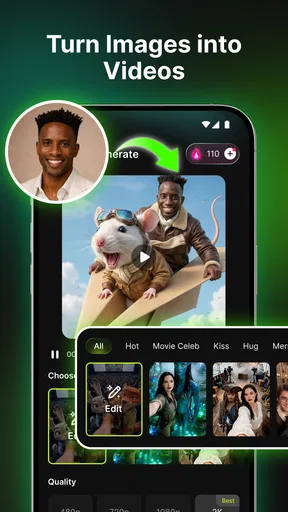
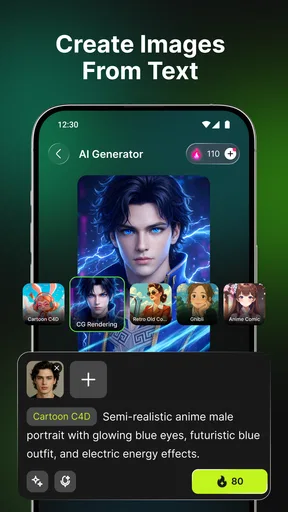
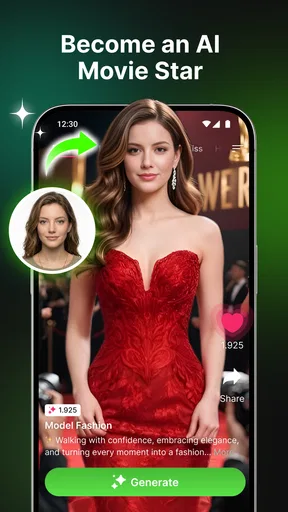
The developer, Kayle AI Solution, has positioned the app around text-to-video, image-to-video, and photo animation. In practical terms, those are three different creative entry points. Text is useful when there is no source image. An image gives the generation a visual anchor. Photo animation is the most approachable option for someone who simply wants a familiar picture to feel less static.
Starting with text requires more direction than I expected
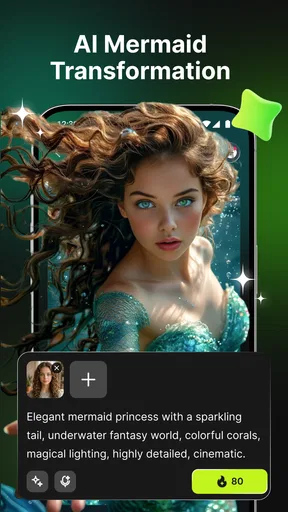
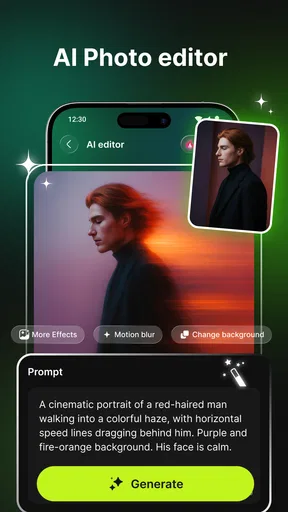
Short prompts are tempting, but they often leave too much room for interpretation. I got more useful results by describing the subject, movement, atmosphere, and camera feeling in one compact instruction. For example, rather than asking for a “beautiful beach,” I would specify a quiet beach at sunset, slow movement in the water, and a calm cinematic mood.
This is not about writing long stories. It is about removing ambiguity. If the household is collaborating, one person can decide what must remain recognizable while another chooses the mood. That small division of responsibility makes experimentation less random and helps avoid arguments over why the result looks different from the original idea.
The trade-off is that a text prompt gives creative freedom but less control over exact details. If the goal is a particular person, object, or place, I would start with an image instead. Text is better for atmosphere and invention; an image is better when visual identity matters.
Image-based creation is easier to coordinate
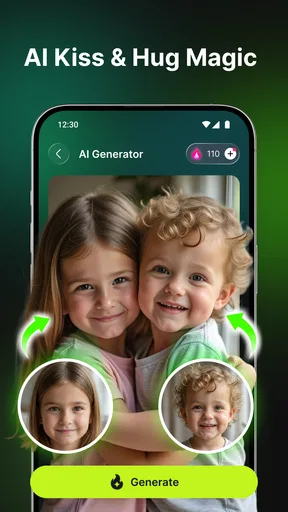
Using an existing image creates a clearer starting point for shared use. Everyone can see which source is being used, and the discussion becomes more concrete: should the subject move gently, should the background feel alive, or should the result remain subtle? This is especially helpful when a less experienced user is involved.
There is also a practical boundary here. A generated animation can change the mood or apparent action of a photograph, so I would preview the result carefully before sending it to someone else. A harmless creative effect can look strange when the subject is a real person, particularly if the motion does not match the original pose or setting.
For household projects, I recommend keeping the original photo untouched and treating each generated result as a separate creative version. That makes it easier to compare attempts and prevents a temporary experiment from becoming the only copy of an important image.
Setup, account boundaries, and everyday coordination
I find it helpful to begin with one uncomplicated prompt or image, then decide together who will guide the creative choices and who can approve optional purchases. That keeps a shared session manageable without assuming the app separates each person’s work or preferences. Once those boundaries are clear, the next useful question is how to coordinate the actual making process so experiments stay focused and personal images are handled thoughtfully.
Keep the first session deliberately small
My preferred way to begin is with one ordinary image or one simple prompt. That lets a new user understand the rhythm of creating, reviewing, and deciding whether the result is worth keeping. Starting with a large collection of personal photos makes it harder to tell whether a disappointing outcome came from the source image, the wording, or the app’s interpretation.
The app is free to install and use as a basic entry point, while in-app purchases range from $0.99 to $39.99 per item. That makes household coordination especially important. If a device is shared, I would make sure everyone understands that optional purchases exist before handing it to a child or leaving it available for casual experimentation.
I would also avoid treating the free label as a promise that every creative attempt is unlimited. The presence of optional purchases means it is wise to check the purchase flow on the device and decide who, if anyone, is allowed to approve spending. This is a general household safeguard, but it matters more in an app where repeated generations can encourage “one more try.”
Separate creative ownership from device ownership
A shared device does not automatically create separate personal spaces. I would not assume that a project made by one household member is isolated from another person who opens the app later. Instead, I would coordinate through a simple routine: use clearly named saved files where possible, export finished clips promptly, and tell other users before beginning a project that may involve personal images.
That routine is useful even for adults. A photo intended for a private joke, a school project, or a family message should not be casually reused just because it is visible on the same device. The app makes visual experimentation easy, but the social boundary around the source image still needs to come from the people using it.
When several people are collaborating, I find it helpful to assign roles. One person chooses the source, another writes the prompt, and a third decides whether the result is suitable to share. This avoids the common problem of changing several things at once and then not knowing which decision improved or weakened the outcome.
Expect iteration instead of one-click perfection
The most important adjustment for new users is accepting that the first generation may be a draft rather than a finished clip. AI video tools can produce an appealing overall idea while missing a small detail that matters to the user. If a family wants a recognizable person or a specific object to remain consistent, it should review the result rather than trusting the concept alone.
That makes the app enjoyable for brainstorming but less suitable when the output must follow a precise brief. A conventional editor gives direct control over timing, cropping, text placement, and transitions. This app gives speed and surprise. Choosing between them depends on whether the priority is discovering a visual idea or controlling every frame.
A useful workflow is to use this app for the imaginative first stage, then move the chosen result into a familiar editing app for trimming, captions, sound, and sequencing. That combination plays to each tool’s strength. Trying to force an AI generator to behave like a full timeline editor is where frustration begins.
What I would watch before sharing a result
I look at faces, hands, text inside the image, and the edges of important objects. These areas can reveal whether the animation feels natural or whether the movement has introduced an awkward distortion. I also check whether the result still communicates the intended message without the original image beside it.
This review step is particularly important for household sharing. A child may find an unusual result funny, while an adult may see it as embarrassing or unsuitable to send. Conversely, an adult may overlook how entertaining a harmless visual experiment is for a younger viewer. Agreeing on the audience before sharing helps keep the creative process comfortable.
I would also ask whether every person shown in the source image is comfortable with the transformation. The app’s Everyone content rating describes the general age suitability of the application, but it does not replace family judgement about which personal photos should be animated or circulated.
Age, trust, and supervision
The Everyone rating makes the app approachable for a broad audience, and the creative concept is easy enough for younger users to understand. Still, “easy to use” does not mean “needs no guidance.” A child may not recognize that an AI-generated result can alter the appearance or action of a real person in a way that was never intended.
For younger household members, I would begin with imaginary subjects, scenery, pets, or non-sensitive pictures. That keeps the first experiments playful while teaching an important lesson: the generated clip is an interpretation, not proof that the depicted event happened. This distinction becomes especially valuable when children share creations with friends.
Older children and teenagers may appreciate the app as a way to develop story ideas or make visual posts, but they should understand the difference between playful editing and misleading representation. I would encourage them to label imaginative results clearly when the context could confuse viewers.
Trust also works in the other direction. Adults should avoid taking over every creative decision simply because they are supervising. The best shared experience is usually a short project with agreed boundaries, followed by a review together. That preserves the fun while making the responsible choices visible.
Where it fits beside ordinary alternatives
Compared with a standard mobile video editor, AI Video Generator - AI Photo removes much of the manual setup. You do not need to begin by arranging clips on a timeline or searching for a transition. That is a real advantage when the goal is to turn an idea into something visual quickly.
The ordinary editor wins when you already have footage and know exactly how the final piece should look. It is also the better choice for precise pacing, subtitles, music alignment, branded layouts, and repeatable results. In those situations, AI generation can add uncertainty where direct editing would be faster.
Compared with a simple photo editor, this app is more ambitious because it attempts to create movement rather than only adjust an existing picture. The benefit is a more noticeable transformation. The cost is that the result may not preserve every visual detail exactly as a conventional filter would.
I see it as a companion rather than a universal replacement. Use it when the question is “What could this image or idea become?” Use a conventional editor when the question is “How do I place these exact elements at these exact moments?” That distinction makes the app much easier to judge fairly.
Compatibility and the practical cost of experimentation
The app requires Android 8.0 or newer, so it is accessible on many devices but not every older phone or tablet. On a shared household device, checking the operating system before planning a project avoids an awkward situation where one person can use the app and another cannot.
The current version is 16, and the app has built a strong visible audience, with an average rating of 4.8 from around 8K ratings and over 500K installs. Those figures suggest that the concept is resonating with many users, but they do not remove the need to judge it against your own workflow. A high rating cannot guarantee that its AI interpretation will match a specific creative brief.
Performance expectations should also be realistic. Generative video is more demanding than adding a filter to a photo, so I would use a stable connection and avoid beginning an important project when the device is nearly full or being used for several other tasks. Even when the app itself feels simple, the creation process is not the same as applying a basic edit.
Who should choose it and who should skip it
I would recommend it to someone who enjoys experimenting, wants to animate photos, or needs a quick visual starting point for a message or social post. It is also a good fit for a household that likes collaborating on small creative projects and is comfortable reviewing results together.
I would be more cautious recommending it to a professional editor who needs exact control, consistent character details, or dependable repeatability. A filmmaker, educator, or business user working to a strict specification may prefer a traditional editor or a more specialized production tool for the final output.
It is also not the right choice for someone who dislikes trial and error. The app’s appeal comes from seeing how an idea is interpreted, and that naturally includes results that need to be discarded. If every attempt must be correct on the first try, the flexibility may feel like a weakness rather than a benefit.
My household verdict
After using it as a creative tool rather than a complete production suite, I found a clear place for it. It makes the first step of video creation less intimidating, especially when the source is a single image or a simple written idea. For a shared device, the experience works best when users coordinate source photos, understand the optional purchase model, and review personal-image results before sharing them.
Kayle AI Solution has delivered an approachable app for turning static material into something more expressive. The free starting point lowers the barrier, while the Everyone rating makes the concept broadly accessible. The main responsibility remains with the household: decide whose images may be used, who can approve purchases, and how generated clips should be presented to other people.
I would install it for quick experiments, family-friendly creative sessions, and rough visual ideas that I can polish elsewhere. I would not make it my only video editor, and I would not hand it to a child without explaining that AI can invent or distort details. With those boundaries in place, AI Video Generator - AI Photo is an enjoyable addition to a mobile creative toolkit, particularly for anyone who values discovery more than frame-by-frame control.
Privacy and Permissions
See what permissions an app requests and how it handles your data.
- Photos/Media/Files
- read the contents of your USB storage, modify or delete the contents of your USB storage
- Storage
- read the contents of your USB storage, modify or delete the contents of your USB storage
- Other
- view network connections, full network access, control vibration, prevent device from sleeping, Google Play license check, read Google service configuration
Verdict
Strengths of AI Video Generator - AI Photo
- Creates videos from text or photos with minimal editing experience.
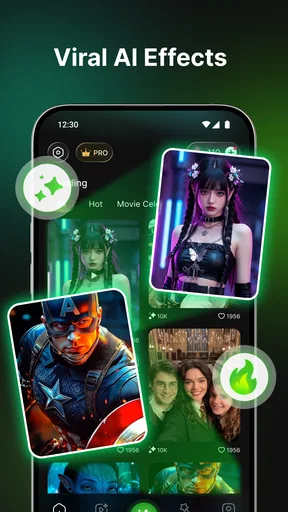
- Offers creative AI effects for turning still images into animated clips.
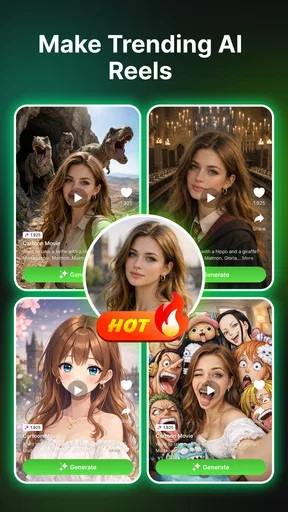
- Useful templates can speed up social media content creation.
- Simple interface makes basic video generation easy to understand.
- Convenient for experimenting with different visual styles quickly.
Limitations of AI Video Generator - AI Photo
- AI results can vary noticeably depending on the prompt or source image.
- Some advanced styles or exports may require a paid subscription.
- Generated videos may include visual glitches or unnatural motion.
- High-resolution rendering can take time and use considerable battery.
- Privacy terms should be checked before uploading personal photos.
Other Releases by Kayle AI Solution
View All
Themeora: Widgets & Wallpaper
Personalization4.7
Similar Picks in This Category
View All
Google TV
Google LLC3.9

iTunes
Apple4.7

YouTube
Google LLC3.8

MX Player
Amazon Mobile LLC4.2

CapCut - Video Editor
Bytedance Pte. Ltd.3.5

PLAYit-All in One Video Player
PLAYIT TECHNOLOGY PTE. LTD.4.5
Frequently Asked Questions
What is AI Video Generator - AI Photo, and what can it do?
AI Video Generator - AI Photo is designed to transform photos and written ideas into short, AI-generated videos. Depending on the available tools, users may be able to animate still images, apply visual effects, create slideshow-style clips, add music, and experiment with different templates or styles. It is mainly intended for social media content, personal projects, and quick creative experiments rather than professional film production.
Is AI Video Generator - AI Photo free to download and use?
The application may be available as a free download, but some features can be restricted by subscriptions, credits, advertisements, or in-app purchases. Advanced AI generations, premium templates, higher-quality exports, and watermark removal are commonly placed behind a paid plan. Before creating multiple videos, check the app’s pricing page and subscription terms so you understand recurring charges, trial periods, and cancellation requirements.
What photos and permissions does the app require?
To create videos from personal images, AI Video Generator - AI Photo generally needs access to your device’s photo library or selected media files. It may also request permission to save generated videos, use the camera, or access notifications. Grant only the permissions that are necessary for the features you plan to use. Reviewing the privacy policy is also recommended, because uploaded photos may be processed on remote servers.
Can the generated videos be saved and shared on social media?
Generated clips can usually be exported to the device and shared through platforms such as Instagram, TikTok, YouTube Shorts, Facebook, or messaging apps. Export options may vary according to the selected template, video length, resolution, and account type. Free users may encounter watermarks, advertisements, or limits on downloads. It is worth checking the final preview carefully before publishing, especially for visual glitches or unexpected audio.
Are AI-generated results reliable and suitable for professional use?
The quality of AI-generated videos can vary considerably depending on the source photo, prompt, selected style, and processing system. Faces, hands, text, backgrounds, and motion may occasionally look distorted or unnatural. For casual posts and entertainment, the results can be enjoyable, but professional users should review every frame and confirm licensing requirements for images, music, and generated content before using the videos commercially.
